

How to add custom R.O.B.E.R.T. rules

Winder S
Oct 20, 2025

You can customize your R.O.B.E.R.T. rules by allowing, blocking or spoofing any domain or IP you like.
Here is a quick link to this page: https://windscribe.com/myaccount/security/custom-rules (you will need to login first). It opens Custom Rules under Security in My Account.
To add a rule:
- Click Add Rule, choose Domain or IP / CIDR as the Rule type, and enter your selected domain or IP
- Under Action, select Block, Allow or Spoof (Spoof is for domains only). For Spoof, also enter the IP address the domain should resolve to under Resolve to
- Click Add Rule to save it
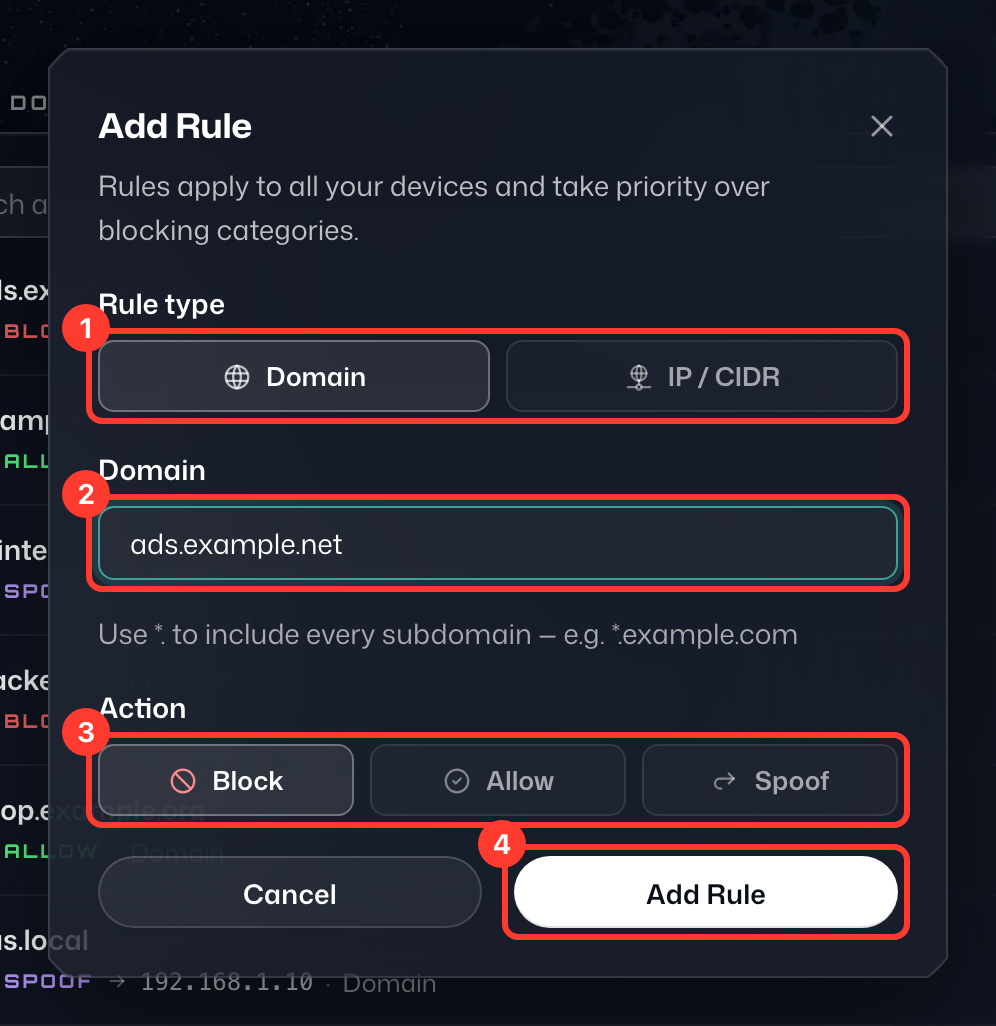
Your rule applies to all your connected devices automatically, so there is nothing else to confirm. Note: Once you have added the rule, Windscribe will automatically add associated domains.
Your custom rule has been added. To change or remove a rule, open the ⋮ menu on its row and choose Edit rule or Delete rule. 
Learn more about how R.O.B.E.R.T. works here: https://blog.windscribe.com/how-r-o-b-e-r-t-works-76d627446083/